# Extras
This directory contains additional palettes and pre-configured templates for various applications.
## Navigation
- [Palettes](#palettes)
- [Cursed](#cursed)
- [Cursed Light](#cursed-light)
- [Nord](#nord)
- [Pre-configured Templates](#pre-configured-templates)
- [Terminal Emulators](#terminal-emulators)
- [Kitty](#kitty)
- [Alacritty](#alacritty)
- [Ghostty](#ghostty)
- [Text Editors](#text-editors)
- [Neovim](#neovim)
- [Visual Studio Code](#visual-studio-code)
- [Browsers](#browsers)
- [Firefox](#firefox)
- [Applications](#applications)
- [Telegram](#telegram)
- [Desktop Themes](#desktop-themes)
- [GTK](#gtk)
- [Qt Applications](#qt-applications)
- [Window Managers](#window-managers)
- [Hyprland](#hyprland)
## Palettes
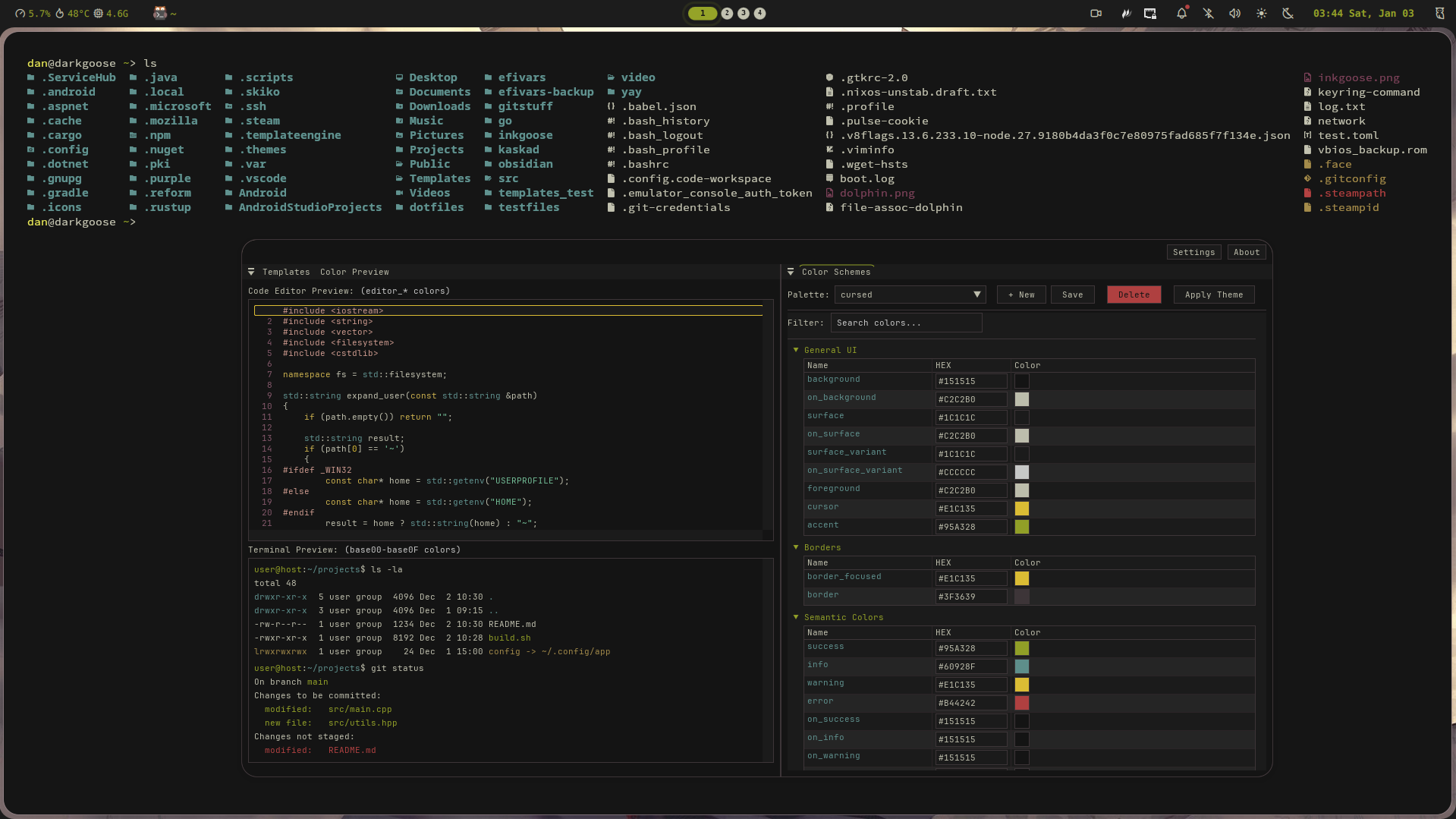
### Cursed
A dark color scheme inspired by the `cursed` theme by [pyratebeard](https://pyratebeard.net).
Preview
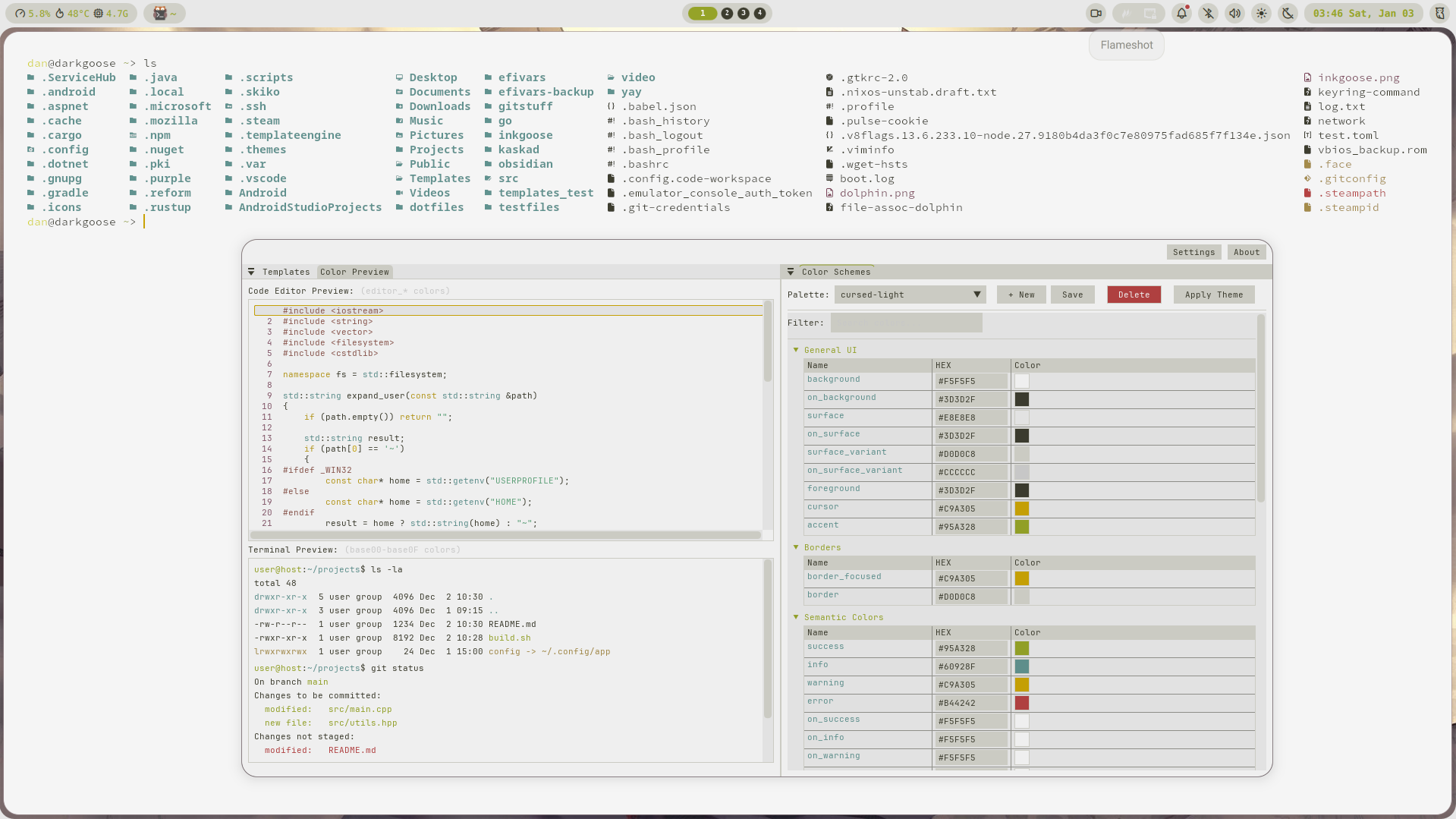
### Cursed Light
A light variant of the `cursed` color scheme.
Preview
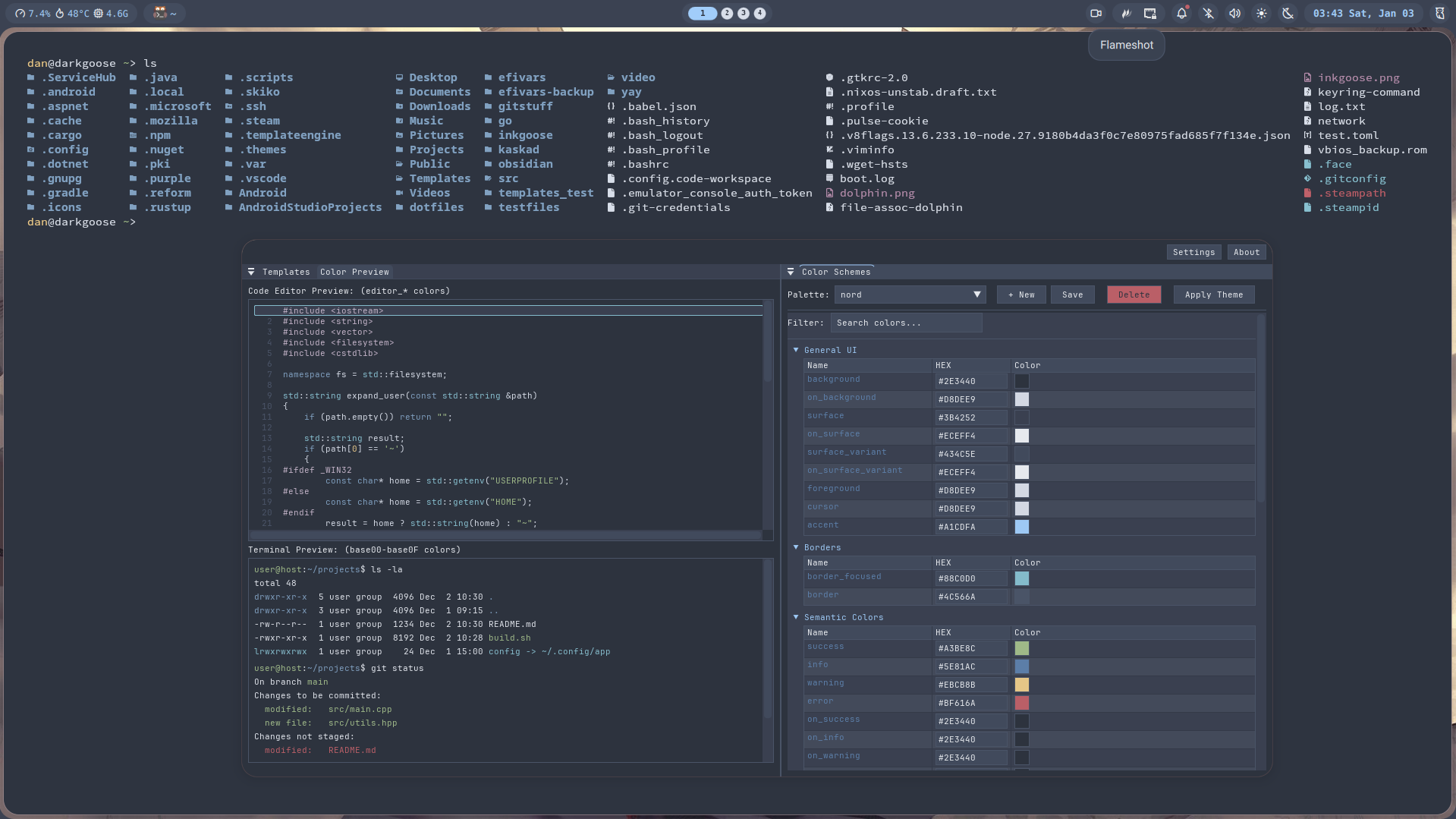
### Nord
A color scheme based on the `Nord` palette.
Preview
## Pre-configured Templates
### Terminal Emulators
#### Kitty
1. Download the [template file](templates/kitty.conf)
2. Configure the template in `~/.config/clrsync/config.toml`:
```toml
[templates.kitty]
enabled = true
input_path = '~/.config/clrsync/templates/kitty.conf'
output_path = '~/.config/kitty/clrsync.conf'
reload_cmd = 'pkill -SIGUSR1 kitty'
```
3. Import the generated color scheme in `~/.config/kitty/kitty.conf`:
```conf
include clrsync.conf
```
#### Alacritty
1. Download the [template file](templates/alacritty.toml)
2. Configure the template in `~/.config/clrsync/config.toml`:
```toml
[templates.alacritty]
enabled = true
input_path = '~/.config/clrsync/templates/alacritty.toml'
output_path = '~/.config/alacritty/clrsync.toml'
reload_cmd = ''
```
3. Import the generated color scheme in `~/.config/alacritty/alacritty.toml`:
```toml
[general]
import = ["clrsync.toml"]
```
#### Ghostty
1. Download the [template file](templates/ghostty)
2. Configure the template in `~/.config/clrsync/config.toml`:
```toml
[templates.ghostty]
enabled = true
input_path = '~/.config/clrsync/templates/ghostty'
output_path = '~/.config/ghostty/themes/clrsync'
reload_cmd = 'pkill -SIGUSR2 ghostty'
```
3. Set the generated color scheme in `~/.config/ghostty/config`:
```conf
theme = "clrsync"
```
### Text Editors
#### Neovim
1. Download the [template file](templates/nvim.lua)
2. Configure the template in `~/.config/clrsync/config.toml`:
```toml
[templates.nvim]
enabled = true
input_path = '~/.config/clrsync/templates/nvim.lua'
output_path = '~/.config/nvim/colors/clrsync.lua'
reload_cmd = ''
```
3. Set the colorscheme in your Neovim config:
```lua
vim.cmd.colorscheme 'clrsync'
```
#### Visual Studio Code
1. Install the [clrsync VS Code theme](https://marketplace.visualstudio.com/items?itemName=obsqrbtz.clrsync)
2. Download the [template file](templates/code.json)
3. Configure the template in `~/.config/clrsync/config.toml`:
```toml
[templates.vscode]
enabled = true
input_path = '~/.config/clrsync/templates/code.json'
output_path = '~/.vscode/extensions/obsqrbtz.clrsync-1.0.2/themes/clrsync-color-theme.json'
reload_cmd = ''
```
4. Set the `clrsync` color scheme in VS Code
### Browsers
#### Firefox
1. Go to `about:config` and set `toolkit.legacyUserProfileCustomizations.stylesheets` to `true`
2. Go to `about:support` and find your profile directory
3. Create a `chrome` directory in your profile
4. Download the [template file](templates/userChrome.css)
5. Configure clrsync to output to `/chrome/userChrome.css`:
```toml
[templates.firefox]
enabled = true
input_path = '~/.config/clrsync/templates/userChrome.css'
output_path = '/chrome/userChrome.css'
reload_cmd = ''
```
### Applications
#### Telegram
1. Download the [template file](templates/telegram.tdesktop-theme)
2. Configure the template in `~/.config/clrsync/config.toml`:
```toml
[templates.telegram]
enabled = true
input_path = '~/.config/clrsync/templates/telegram.tdesktop-theme'
output_path = '~/clrsync.tdesktop-theme'
reload_cmd = ''
```
3. Apply the palette with clrsync and send the generated `clrsync.tdesktop-theme` file to yourself in Telegram
4. Click on the theme file in the Telegram dialog to apply it
### Desktop Themes
#### GTK
1. Download the [template file](templates/gtk.css)
2. Configure the template in `~/.config/clrsync/config.toml`:
```toml
[templates.gtk3]
enabled = true
input_path = '~/.config/clrsync/templates/gtk.css'
output_path = '~/.config/gtk-3.0/colors.css'
reload_cmd = ''
[templates.gtk4]
enabled = true
input_path = '~/.config/clrsync/templates/gtk.css'
output_path = '~/.config/gtk-4.0/colors.css'
reload_cmd = ''
```
3. Import the color scheme at the top of `~/.config/gtk-3.0/gtk.css`, `~/.config/gtk-4.0/gtk.css`, and `~/.config/gtk-4.0/gtk-dark.css`:
```css
@import 'colors.css';
```
#### Qt Applications
1. Download the templates:
- Kvantum: [kvantum.kvconfig](templates/kvantum/kvantum.kvconfig) and [kvantum.svg](templates/kvantum/kvantum.svg)
- Qt5ct/Qt6ct: [qtct.conf](templates/qtct.conf)
2. Configure the templates in `~/.config/clrsync/config.toml`:
```toml
[templates.kvantum]
enabled = true
input_path = '~/.config/clrsync/templates/kvantum/kvantum.kvconfig'
output_path = '~/.config/Kvantum/clrsync/clrsync.kvconfig'
reload_cmd = ''
[templates.kvantum-svg]
enabled = true
input_path = '~/.config/clrsync/templates/kvantum/kvantum.svg'
output_path = '~/.config/Kvantum/clrsync/clrsync.svg'
reload_cmd = ''
[templates.qt5ct]
enabled = true
input_path = '~/.config/clrsync/templates/qtct.conf'
output_path = '~/.config/qt5ct/colors/clrsync.conf'
reload_cmd = ''
[templates.qt6ct]
enabled = true
input_path = '~/.config/clrsync/templates/qtct.conf'
output_path = '~/.config/qt6ct/colors/clrsync.conf'
reload_cmd = ''
```
3. Set the theme in `~/.config/Kvantum/kvantum.kvconfig`:
```conf
[General]
theme=clrsync
```
4. Set the theme in `~/.config/qt5ct/qt5ct.conf` and `~/.config/qt6ct/qt6ct.conf`:
```conf
[Appearance]
color_scheme_path=$HOME/.config/qt5ct/colors/clrsync.conf
custom_palette=true
```
### Window Managers
#### Hyprland
1. Download the [template file](templates/hyprland.conf)
2. Configure the template in `~/.config/clrsync/config.toml`:
```toml
[templates.hyprland]
enabled = true
input_path = '~/.config/clrsync/templates/hyprland.conf'
output_path = '~/.config/hypr/hyprland/clrsync.conf'
reload_cmd = ''
```
3. Source the color theme in your Hyprland config:
```conf
source=~/.config/hypr/hyprland/clrsync.conf
```